Hazard settings
Admin Settings Overview
Hazards and Features Settings
Each site has their own way of categorising features, the required properties and rules on who is responsible for what actions. HazView lets administrator accounts customise all of these to fit your sites requirements.
Rating Systems
For each feature a Rating System and colour is assigned. This will be displayed on the Map.
Add and Customize Rating Systems
- Select the Hazards and Features tab from the top of the screen.
- Select the New Rating System button to add a new rating.
- Enter new Rating System Name, colour and notifiable roles.
- Select Add New Rating system to save changes.
- You can edit any system by selecting the pencil icon in the Edit column.
Feature Properties
The properties recorded for each feature can be customised based on your sites preferences. HazView lets you choose which properties fields can be filled out for each feature. Multiple types of input fields can be chosen:
- Text
- Hyperlink
- Dropdown menu
- Number
Add a Feature Property
- Select the Add Property button to add a new feature property.
- Enter new property name, type and hint.
- Included in Report Form will show this property when viewing a features report page.
- Role Edit Permissions determines which user roles are able to edit this property (e.g. only geotechnical engineers can input runout distances).
- Select Add Property to save your changes.
Edit a Feature Property
- If you want to edit a property, scroll across to the Edit Column and select the pencil icon.
- Make your desired changes and select *Update Property
Feature Types
Different sites may have different types of features that are important to distinguish (e.g. Blasting hazards, misfires, sumps, water dams). HazView lets you customise which feature types to report.
- Each feature type can have sub-categories.
- You can add custom icons.
Add Feature Type and Sub Categories
- Select the Add Feature Type button to add a new feature type.
- Enter new feature type.
- Select Add Sub Category for each sub-category you want your users to be able to select.
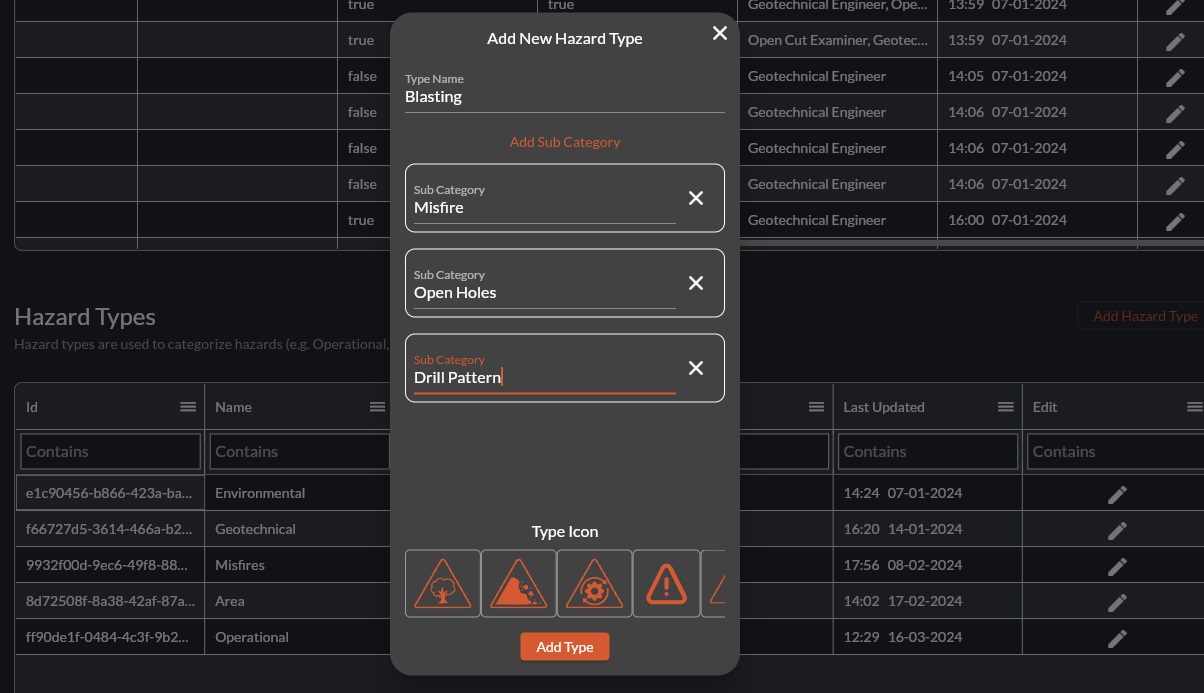
- Choose your desired icon.
- Select Add Type to save changes.
- Select the pencil icon in the Edit column to modify Feature Types details at any time.
Feature Status
You can customise what statuses you can have at a site. These typically include, active, inactive and misreported.
- Select the Add Feature Status button to add a new feature status.
- Enter new feature status.
- Select Add Status to save changes.
Feature Edit permissions
Feature edit permissions allows you to control which users are able to edit Features. All the core permissions are included and your site can control which user roles can do what. To edit these:
- Scroll to the Edit column and Select the pencil icon button.
- Select which users can control that function.
Feature Tags
Features can have files added them. Files can have tags added to them for easy identification. These tags can be customised as required with tag name and colour.
Related Articles
How to Add a Hazard/Feature
Overview: HazView allows users with permission to add hazards and features to the map. Each hazard or feature includes customised properties including location, description, controls, photos and associated actions. Each hazard/feature receives a ...How to Edit a Hazard/Feature
Overview: Hazards, Features and their controls are constantly updating. Users with the correct Role can edit hazard and feature properties as required to ensure the information stays useful and up to date. Permissions for this are managed by your ...How to Add Controls
To ensure a hazard is managed safetly, Controls can be added. Controls can include requirements such as stand-offs, bunding, signage and more. Each control can be marked as active or inactive. Users can also assign accountable roles and due dates. ...Accessing the hazard archive
Watch this video for a quick overview of the Hazard Archive and what you can do with it: Accessing the Hazard Archive The hazard archive is a table with the hazard details for every single hazard that has ever been added. This table includes all ...How to Log an Inspection
Overview Inspections are completed directly from the HazView map. Different inspection types will create a coloured halo around the hazard/features icon. When to Use During statutory inspections When verifying recent hazard updates When completing ...